#TinyMCE: Validation with MVC

Today I am trying to figure out how to do validation with TinyMCE editors while using MVC’ s unobtrusive validation.  I did a google search and came up with a large number of results that all said the same thing.  I couldn’t get any of them to work.  While testing I found the following solution.  It isn’t perfect but is pretty close to what I need.

Here is the solution I came up with. I didn’t need to add any other additional code to the page.

      $('form button[type=submit]').not('.cancel').click(function () {
        var form = $('#FormName');
        var isValid = form.valid();
        var istinymceValid = $('#ContentField').valid();
        if (!isValid || !istinymceValid) {
          return false;
        }
        return true;
      });
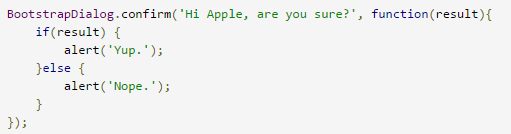
Bootstrap3 Dialog

Bootstrap3dialog

One of the great things about programming in the world today is that so much of the basic functionality I need can be found somewhere on the Web, as long as you know the correct search string.

I spent a good chunk of time looking for a quick and easy way to use Bootstrap modals without having a ton of ugly code on each page that isn’t really necessary.  Especially for modals that are repeated throughout the software.

This time I was looking for a Bootstrap modal that could be easily used for Alert and Confirmation boxes.  I couldn’t find one out there, even though I knew it should exist, so I built my own.  Then I plugged in a different search string and found exactly what I needed.

Bootstrap3 Dialog (Git Hub)is a nice clean simple solution that meets all our needs.  The code is well laid out and I was able to make some minor modifications that met our custom needs.

MVC Tips n Tricks: Using a button like an action link

I had the need to display a button that works like an action link to redirect the user to a page within an Area and didn’t want to wrap the whole thing in a form just to do the redirect.  Here is what I used.  It allows the same styling and behavior as a button but redirects directly like an action link.

<input type="Submit" 
       value="Add Persona" 
       class="btn btn-primary btn-lg" 
       onclick="location.href='@Url.Action("Detail", "Persona", new { area = "ProfileInfo" })'" />

Web Dev Tips n Tricks: Using font awesome as icons to beautify Input boxes

Today I had a requirement that asked for a textbox that looked similar to the following.  Since we don’t currently use BootStrap or anything similar I had to come up with it on my own.  I found the following post that worked perfectly.emailbox

Purpose of this post is to show you how we can use font awesome to beautify a HTML text field or a HTML number box or similar. Its not exactly a background image but our Font awesome icon will be placed on top of our input box so that it act as one.

Read more: http://jaspreetchahal.org/using-font-awesome-as-background-images-to-beautify-input-boxes/#ixzz32HwoWKHw

Web Dev Tips N Tricks: Font Awesome!

Capture

One of the more interesting libraries I’ve used recently is Font Awesome.  It’s a glyph library that allows you to use professional clean looking icons as a part of your project.   It is very flexible and is easy to implement using markup.  It is part of the Twitter Bootstrap world,  is easily integrated into your website, and is also able to be added to  WordPress via a plugin.

One of the nicer features of the library is the simple built in functionality to do things like make the icons larger, stack them, flip or rotate them, and much more.

Additional Links: